Categories Salesforce

Salesforce Reports – Create a simple custom report

Adjust Settings:

Introduction:

Imagine trying to comb through your data to figure out what percentage of your opportunities had been closed this year. After a few hundred clicks, you would get pretty frustrated. Luckily, there are reports and dashboards to make your life easier. Compare, evaluate, dissect, and categorize data that will help you and your team make the right business decisions. All with the power of reports and dashboards.

Benefits of Reports:

You and your sales and marketing managers benefit from reports in these ways:

  • Visibility into data—reports give you easy access to key data insights, which helps managers make better decisions.
  • Time savings—you don’t have time to manually dig through all your many objects, records, and fields to pull together answers to your manager’s questions. Reports give you quick way to answer both simple and complex questions.
  • Flexibility—with reports you can pull data from all your standard and custom objects and fields. You have many powerful options for tailoring reports to the specific needs of your end users.

Your Stakeholders’ Reporting Needs:

In this project, you’ll get hands-on practice building reports on the Salesforce platform from start to finish. Let’s see the reports you’ll build for each of your stakeholders to track key business information.

Stakeholder Reporting Requirements
VP of Sales
  • Simple report showing all of her sales teams’ opportunities, by that have been closed won this year.
  • Report showing opportunities by rep, grouped by Close Date and displayed in a table.
  • Matrix report showing opportunities by owner, stage and size in the pipeline this fiscal quarter.
  • Report showing percentage of closed opportunities being won.
  • Visual comparison of sales rep win rates.
CEO
  • Ability to export and manipulate a report spreadsheet software.

Adjust Settings:

1. Click Setup and select Setup.
2. Enter Users in Quick Find and select Users.
3. Click Edit next to your name and change Role to CEO.
4. Click Save.
Next, edit the Close Dates for all of the existing opportunities. This is done so the correct data appears when you run the current fiscal quarter report later in this project.
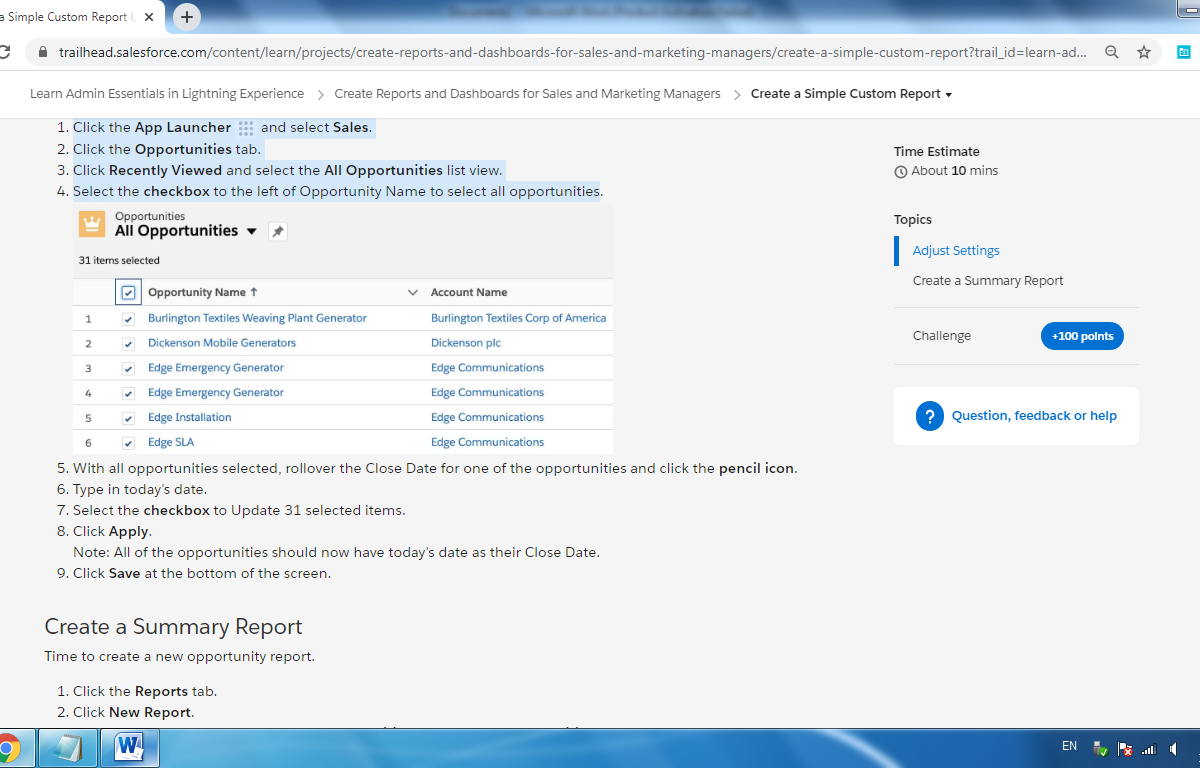
1. Click the App Launcher and select Sales.
2. Click the Opportunities tab.
3. Click Recently Viewed and select the All Opportunities list view.
4. Select the checkbox to the left of Opportunity Name to select all opportunities
1. With all opportunities selected, rollover the Close Date for one of the opportunities and click the pencil icon.
2. Type in today’s date.
3. Select the checkbox to Update 31 selected items.
4. Click Apply.
Note: All of the opportunities should now have today’s date as their Close Date.
5. Click Save at the bottom of the screen.

Create a Summary Report:

Time to create a new opportunity report.
1. Click the Reports tab.
2. Click New Report.
3. In the Choose Report Type list, click Opportunities, then select Opportunities from the list that appears.
4. Click Continue
Next, you’ll use the Lightning Report Builder—a visual editor for reports. The report builder screen lets you work with report fields and filters, and shows you a preview of your report with just some of the data.
Set the scope of the report using the standard filters.
1. Click the Filters pane.
2. Ensure Close Date is set to Current FQ.
3. Click Opportunity Status and select Open and click Apply.
Change the report columns as required.
1. Click the Outline pane and click the X next to the following column headers to remove them:

  • Owner Role
  • Fiscal Period
  • Age
  • Created Date
  • Next Step
  • Lead Source
  • Type

2. In the Preview pane, click the arrow next to the Opportunity Owner column heading and then select Group Rows by This Field.
Add a summary field.
1. Click the arrow next to the Amount column heading.
2. Select Summarize.
3. Click Sum.
Save the report as Opportunities by Rep in the Global Sales Reports folder.
1. Click Save & Run, and then complete the Save Report details:

  • Report Name: Opportunities by Rep
  • Click in the Report Unique Name text box to auto-populate the unique name. Don’t worry, the unique name of this report isn’t checked.
  • Report Description: What opportunities do reps have in the pipeline?

2. Click Select Folder, choose Global Sales Reports, and click Select Folder.
3. Click Save.

Categories Salesforce

The How & What: Salesforce Event Monitoring

event monitoring

What is Event Monitoring?

Event Monitoring is a Salesforce feature for a Salesforce administrator to assist them to screen and detect well known activities in Salesforce in close to real-time. It is one of the many tools provided with the aid of Salesforce to maintain your records safe by way of permitting the Salesforce administrator to see the granular details of user activities referred to as occasions. The Salesforce administrator can view information about individual activities or track trends in occasions to unexpectedly become aware of abnormal behavior and shield their company’s records.

With real-time event tracking you benefit extra insights on:

  • Who viewed what records and when?
  • Where was the information accessed?
  • When a person makes change to data via the usage of a UI?
  • Who is logging in and from where?
  • Who in your enterprise is performing moves associated with Platform Encryption administration?
  • Which admin logged in as any other person and the movements that admin took as that person?
  • How long it takes a lightning web page to load?

Some of the sort events that may be tracked are:

  • Logins
  • Logouts
  • URI (web clicks in Salesforce classic)
  • Lightning (web clicks, performance, and Errors in Lightning Experience and he Salesforce mobile app)
  • Visualforce page loads
  • API Call
  • Apex Executions
  • Report exports

These events are stored in event log files. An event log file is generated when an event occurs in an organization and is available to view and download after 24 hours. The event types that can be accessed and how long the files remain available depends on edition under use.

How to enable Event Monitoring?

Event Monitoring is an add-on provided by Salesforce which can be purchased by contacting the Salesforce sales representative or Account Executive. After purchasing it you would be allowed to access all event types in the following

  • Event Log File:

Represents event log files for event monitoring. The event monitoring product gathers information about your Salesforce org’s operational events, which you can use to analyze usage trends and user behavior. … To view the underlying event data, query the LogFile field

This is an event log of windows XP just to give you a basic idea what event log file looks like.

  • Login Event object:

LoginEvent tracks login activity of users who log in to Salesforce. You can use LoginEvent in a transaction security policy. LoginEvent is a big object that stores the event data of LoginEventStream. This object is available in API version 36.0 and later.

  • Transaction Security:

Transaction Security is a framework that intercepts real-time Salesforce events and applies appropriate actions and notifications based on security policies you create. Transaction Security monitors events according to the policies that you set up. These policies are applied against events in your org and specify actions to take when certain event combinations occur. When a policy is triggered, you can have an action taken and receive an optional notification.

  • Event Monitoring Analytics app

The Event Monitoring Analytics App integrates with event monitoring and setup audit trail data to give you insights into your user and org behavior. The app is a built-in way to explore your monitoring data in Salesforce. App creation is easy and with its prebuilt dashboards and datasets, you can start exploring right away. This app helps you drill into your org’s data and swiftly identify suspicious behavior, slow page performance, and poor user adoption.

Steps to Enable Event Monitoring dashboards in Salesforce Sandbox:

“setup—analytics—enable”

1) Setup

Event Monitoring

Enable Login Forensics and Event Log File Integration with Event Monitoring Analytics App

2) Open Analytics studio app

Click on that and a new tab will open

3) Click on CREATE.

4) You will see stages 1 to 5 don’t transform anything with the exception of the no. of days to 30

Name the App “Occasion Monitoring App”

The application will run and you will see the beneath screen capture and an email will be sent once its prepared.

Using Event Monitoring:

When the Event Monitoring add-on is purchased from Salesforce it allows you to access the EventLogFile which contains the events that occurred. These files are read only and cannot be updated or deleted. Log file generation depends on the event to occur, if an event(represented by the EventType field) does not occur the log file will not be generated, but if the event occurs and the log file is not created then you should contact the Salesforce Customer Support.

When using event monitoring, keep the following in mind:

  • In the unlikely case in which no log files are generated for 24 hours, contact Salesforce Customer Support.
  • Log data is read only. You can’t insert, update, or delete log data.
  • Use the EventType field to determine which files were generated for your org.
  • An event generates log data in real time. However, daily log files are generated during nonpeak hours the day after an event takes place. Therefore, daily log file data is unavailable for at least one day after an event. For hourly log files, depending on event delivery and final processing time, an event is expected to take three to six hours from the time of the event to be available in the log file. However, it can take longer.
  • Log files are generated only when at least one event of a type (represented by the EventType field) occurs for the day or hour. If no events took place, the file isn’t generated.
  • Log files are available based on CreatedDate for the last 30 days when orgs purchase Event Monitoring or one day for Developer Edition orgs.
  • All event monitoring logs are exposed to the API through the EventLogFile object. However, there is no access through the user interface, except through the Event Monitoring Analytics app.
  • Event Monitoring log files aren’t a system of record for user activity. They are a source of truth, but aren’t durable. During Salesforce site switches, instance refreshes, or unplanned system outages, data loss can occur. For example, if Salesforce moves your production org instance, your event log files might have a gap in data. Salesforce makes commercially reasonable efforts to preserve event log file data integrity and avoid data loss. When Salesforce performs a site switch or instance refresh, it uses an automated process to replicate event logs.
  • Hourly event log files are provided for you to review events in your orgs on an accelerated basis. However, it’s possible that you don’t get all event log data in hourly event log files, especially during site switches, instance refreshes, or unplanned system outages. For complete data, use the daily log files.
  • If event transmission failures take too long to recover from, log files are retransmitted to ensure that they are delivered at least once. As a result, latent log files can sometimes contain duplicate event data. When your application consumes latent log files, make sure that your application handles duplicate event delivery.

As always, we @CloudFountain, would love to hear your feedback. In the current pandemic #covid19 situation, please stay safe and healthy.

Categories Salesforce

Benefits of Salesforce and Why Salesforce Communities Matter

Benefits of Salesforce and Why Salesforce Communities Matter

One of the easiest ways to drive away potential customers from your business is to give them a poor reception at the front desk. The same is true for digital businesses, except that most companies have one or more solutions to help them manage their customer relations instead of a front desk.

There are many integrated solutions used by businesses to handle all their Customer Relations problems. Solutions range from email messaging and virtual assistants to chatbots who have been programmed to give specific answers to inquiries. At the forefront is the CRM platform created by one of the earliest cloud-based companies, SalesForce.

What does Salesforce Do?

In addition to CRM software, Salesforce also provides enterprise applications focused on customer service, marketing automation, analytics, and application development.

At the core, Salesforce is a platform that empowers businesses to connect. One of the main features that facilitate this function is Salesforce Communities.

Salesforce Communities

With Salesforce, there are three key community types: 

Essentially Salesforce communities are brand spaces that help brands interact with their publics and collaborate with them using relevant data and content. It is an online social platform where users can connect and discuss various topics of interest.

Using Salesforce communities, customers can have their questions answered, review threads of discussions that provide valuable information, form relationships with other customers, and many more.

Famous brands like Coca-Cola, Starbucks, Walmart, Dell, Nokia, Lowe’s, and TEDx use communities for various reasons, including connecting customers from around the globe and reducing the caseload for their contact centers and support agents.

Advantages of Salesforce Communities

Most Digital Customer communities provide the following benefits to the businesses who implement them: 

For Salesforce, here are a few advantages that set it apart from other similar solutions:

1. Quick and Easy Integration of Brand Identity

Salesforce provides the option of building communities with pre-packages themes and settings. However, there is an easy way to integrate custom themes and consistent templates for those who want their community to stay true to their brand.

2. 24/7 Connection from anywhere in the World.

Salesforce community allows users all over the world to connect and collaborate on projects. There are no time restrictions on the platform, and users can access shared files for long periods after they were originally accessed.

All this allows solutions to be arrived at faster, as all the users have access to the shared data, which can be used as reference points for resolving conflicts.

3. Highly Customizable for Unique Brand Experiences

Salesforce communities can be easily tailored to meet the specific needs of the users and the type of interaction required. Using the Experience builder tool, you can adjust various parameters and user controls such as access levels, themes, etc.

Salesforce You can also customize recommendations to drive community engagement towards specific projects. If there is a new training mandated for employees, you can customize the nature and frequency of reminders to urge employees to undertake it promptly. A new policy can be boldly displayed or regularly sent to notify partners on the community platform for accessible communication.

Salesforce communities allow you to control user access down to the individual. This provides some level of security for the channels of communication within the Salesforce platform.

4. User Friendly and Engaging platform.

Salesforce communities encourage communication and collaboration between teams and members of the same team. It supports the transfer of files and media between users, which broadens the spectrum of sharing in the communities.