Categories General

What’s wrong with this code?

public with sharing class CaseTriggerHandler {

public static boolean isBVal = false;
Private String parentRecordTypeId = [SELECT Id, Name FROM RecordType WHERE DeveloperName = ‘Parent’].Id;
Private String oRRecordTypeId = [SELECT Id, Name FROM RecordType WHERE DeveloperName = ‘OR’].Id;
Private String childRecordTypeId = [SELECT Id, Name FROM RecordType WHERE DeveloperName = ‘Child’].Id;

Most of the developers that I talked to having 4-5 certifications were not able to answer this simple question. I have an opportunity with a client.

So the question is: What’s wrong with this code? How would you solve it?

Categories Salesforce

Salesforce Lightning Data Service (BETA Summer’17) to the rescue!

Data Reuse across different component.

Salesforce is introducing Lightning Data Service Beta version in Summer ’17 release. This will prove to be a very useful and exciting feature for the developers. Consider Lightning Data Service a response to Standard (Set) Controller for VisualForce pages. Lightning Data Service allows to load, create, edit, or delete a record in your component without requiring Apex code as well as handles sharing rules and field-level security for you. Additionally Lightning Data Service improves performance and user interface consistency.

Problem 1: Data Reuse across different component.

Let us consider a scenario where we have 3 components and each component is making an independent call to the server to perform the CRUD(Create, Read ,Update and Delete) operation on the same set of data.

In such scenario, you would have Apex code being called separately for each component creating overhead for the system.

Problem 2: Data Inconsistency

It is possible that the field is updated but because of some issue it is not reflected everywhere.

Lightning Data Services to the rescue!!(Well Almost!)

Salesforce brings Lightning Data Service to the rescue (I said almost because it is in Beta state, hence we will have to wait until it goes live and get the finalized version. But don’t let it dampen your spirits!). Consider Lightning Data Service to be the Standard (Set) Controller for your Lightning Components.

With the LDS a consolidate request is made and stored in a highly efficient cache, the caching is shared across components on the users’ browser, so server requests are not made on cache hits. LDS further optimizes the cache, by only storing the fields that have been requested

When a component updates the viewed record, all the other components using that record on the page are notified, and in most cases refreshed automatically. Additionally, it also supports the parent-child relationship between SObjects.

This retains UI consistency and eliminates the need for a programmatic refresh.

Benefits of LDS

  • No Apex or SOQL.
  • Performance boost from client cache.
  • Data available offline.
  • Data consistency across components.
  • Automatic record refresh from server.
  • Automatic notification when record changes.

Lightning Data Services consist of following:

  • force:recordPreview tag
  • getNewRecord() method
  • saveRecord() method
  • deleteRecord() method
  • recordUpdated Event
  • changeType event.

I am excited to try my hands on with LDS. Here I am creating a lightning component using LDS to edit the accounts record.

Step 1: Create ContactEdit.cmp component


<aura:component implements="flexipage:availableForAllPageTypes,flexipage:availableForRecordHome,force:hasRecordId,force:lightningQuickAction"
access="global">
<aura:attribute name="recordError" type="String"/>
<aura:attribute name="recordInfo" type="Object" />
<aura:attribute name="simpleRecord" type="Object"/>
<aura:attribute name="curView" type="String" />
<force:recordData aura:id="recordHandler"
recordId="{!v.recordId}"
layoutType="FULL"
targetRecord="{!v.recordInfo}"
targetFields="{!v.simpleRecord}"
mode="EDIT"
/>
<div>
<div>
<lightning:input type="text" label="Department" value="{!v.simpleRecord.Department}" />
</div>
<div>
<lightning:input type="text" label="Phone" value="{!v.simpleRecord.Phone}" />
</div>
<div>
<lightning:input type="text" label="Title" value="{!v.simpleRecord.Title}" />
</div>
 
 
<div>
<lightning:button variant="brand" label="Save"  onclick="{!c.saveRecordCntrlr}"/>
<lightning:button label="Cancel"  onclick="{!c.cancelSaveRecord}"/>
</div>
</div>
</aura:component>
 

Step 2: Create ContactEditController.js

({ saveRecordCntrlr : function(component, event, helper) { component.find(“recordHandler”).saveRecord($A.getCallback(function(saveResult) { if (saveResult.state === “SUCCESS” || saveResult.state === “DRAFT”) { component.set(“v.curView”, “baseView” ); } else if (saveResult.state === “INCOMPLETE”) { console.log(“User is offline, device doesn’t support drafts.”); } else if (saveResult.state === “ERROR”) { console.log(‘Problem saving record, error: ‘ + JSON.stringify(saveResult.error)); } else { console.log(‘Unknown problem, state: ‘ + saveResult.state + ‘, error: ‘ + JSON.stringify(saveResult.error)); } })); }, cancelSaveRecord : function(component, event, helper){ component.set(“v.curView”, “baseView” ); } })

Step 3: Go to Setup -> Object Manager -> Contacts -> Buttons Links and Action and create a quick action and select ContactEdit component and click save.

Now we can see the output below

Like always your feedback is invaluable. Please keep posting your questions or concerns. I will try to put more graphics for clarity.

Categories General

Circuit breaker pattern in Microservice Architecture

By now it’s pretty well known that a Microservices architecture has many advantages in terms of low coupling, reusability, business agility and distributed cloud ready applications. But at the same time it makes the architecture brittle, as each user action results in the invocation of multiple services. It replaces in-memory calls of monolithic architecture with remote calls across the network, which works well when all services are up and running. But when one or more services are unavailable or exhibiting high latency, it results in a cascading failure across the enterprise. And the retry logic in service clients worsens the situation for the service exhibiting high latency and brings it down completely.

The Circuit breaker pattern helps to prevent such a catastrophic cascading failure across multiple systems.The circuit breaker pattern allows you to build a fault tolerant and resilient system that can survive gracefully when key services are either unavailable or have high latency.

Everything fails, accept it!

The circuit breaker concept is straightforward. The execution of a function is wrapped or associated with a monitor of some kind, which tracks failures. When the number of failures exceeds a predetermined threshold, the breaker is tripped and any further call attempts return an error without executing the wrapped function. After a timeout period, the circuit is put into a half open state to test if the underlying problem still exists. If a single call fails in this half open state, the breaker is once again tripped. However if it succeeds we then reset the circuit breaker back to the normal state of a closed circuit.

As you can see, the circuit breaker has 3 distinct states – Closed, Open, and Half-Open.

When the circuit breaker is in the CLOSED state, all calls go through to the Supplier Microservice, which  responds without any latency.

If the Supplier Microservice is experiencing slowness, the circuit breaker receives timeouts for its requests to the it. Once number of timeouts reaches the predetermined threshold, it trips the circuit breaker to the OPEN state. In theOPEN state, all calls are returned with an error by the circuit breaker, without making calls to the Supplier Microservice. This behavior helps the Supplier Microservice recover by reducing its load.

In order for the circuit breaker to know if the Supplier Microservice has recovered, it needs a  monitoring and feedback mechanism. It uses this mechanism to make a trial call to the supplier microservice periodically to check if it has recovered. This is called the HALF-OPEN state. If the call to the supplier microservice times out, the circuit breaker remains in the OPEN state. If the call returns success, then the circuit will be switched to CLOSED state.

Example Circuit Breaker using Spring boot:

If you are using Spring Boot, you can use the circuit breaker implementation from Netflix Hystrix fault tolerance library.

@EnableCircuitBreaker
@RestController
@SpringBootApplication
public class CampaignApplication {
@Autowired
private TrackingService trackingService;
@Bean
public RestTemplate rest(RestTemplateBuilder builder) {
return builder.build();
}
@RequestMapping(“/to-track”)
public String toTrack() {
return trackingService.getStats();
}
public static void main(String[] args) {
SpringApplication.run(ReadingApplication.class, args);
}
}

view rawgistfile1.txt hosted with ❤ by GitHub

“EnableCircuitBreaker” annotation tells Spring Cloud that the Campaign application uses circuit breakers that will enable their monitoring, opening, and closing as per availability of tracking service.

Advantages:

The circuit breaker is valuable for monitoring; any state change in the circuit breaker should be monitored, logged and recovered to ensure availability of services.

Testing of various states of the circuit helps you to add logic for a fault tolerant system. For example, if the product catalog service is not available (the circuit is open), then the UI can fetch the product list from the cache.

The circuit breaker pattern handles downtime and slowness of key services gracefully and help those services recover by reducing load.

Future Reading:

https://martinfowler.com/bliki/CircuitBreaker.html

https://spring.io/guides/gs/circuit-breaker/

Categories General

(Don’t) Send Emails with Apex!

Just came across a situation where suddenly the client started receiving this error:

SINGLE_EMAIL_LIMIT_EXCEEDED

I was surprised to see that since I never recommend to send emails using Apex. The limit of 5000 emails per day is too tight.

Following aspects should be driving the design:

  • Send emails through workflows/process builders etc.
  • If you have to send emails through Apex:
    • Bear in mind: you can specify 100 email addresses in To and 25 in CC/BCC fields for SingleEmailMessage
    • Do not send emails to internal users/portal users by setting setToAddresses, Use setTargetObjectId, this will allow you to send any number of emails to internal/portal users.
    • You can send mass emails to only contacts, person accounts, leads and internal users.
    • Crossing the Governor limit would result in unhandled exception. Voila!! reserveSingleEmailCapacity has come to the rescue.

e.g.

try {
    Messaging.reserveSingleEmailCapacity(1001);
} catch (Exception e) {
    // From Winter '14, this code is now executed.
    System.debug(e.getMessage());
}

If your code (in the current context) is going to exceed the organization’s daily limit, it will throw a HandledException: System.HandledException: The daily limit for the org would be exceeded by this request.

P.S.: In case you receive any of the following:

UNKNOWN_EXCEPTION, unable to send email:

SendEmail failed. First exception on row 0; first error: NO_MASS_MAIL_PERMISSION, Single email is not enabled for your organization or profile. Single email must be enabled for you to use this feature.:

Check the following:

Navigate to Setup > Email Administration > Deliverability to update the Access Level to All Email.

Hope that helps.

Ketan Benegal

Categories Salesforce

Content Management in Salesforce

Creating Salesforce CRM Content Users

Salesforce CRM Content Overview

Salesforce CRM content feature helps organize, share, search, and manage content within your organization and across key areas of Salesforce. Content includes all file types, from traditional business documents such as Microsoft® PowerPoint presentations to audio files, video files, Web pages, and Google® docs.

Key Features

  • Organizing – Salesforce CRM Content stores files in fully searchable file repositories known as libraries with different permissions, access level, filters and private libraries features.
  • Searching – The powerful Salesforce CRM Content search engine scans the entire body of the document as well as content properties such as the title, description, tags, categorization data, and author name. 
  • Subscribing – Content subscription ensures that you receive an email notification when new versions are published or changes are made to the file’s properties. 
  • Previewing – If the content is a Microsoft PowerPoint, Word, Excel, or Adobe® PDF file, you can preview the entire file in your browser without downloading it. Some aspects of files may not be displayed in previews. Copy-protected PDFs can’t be previewed.
  • Contributing – Uploading new or revised files in Salesforce CRM Content is fast and easy. During the upload process you choose a library and record type for your file or Web link, write a description, assign one or more tags, and fill out any customized fields that help categorize and define your content.  
  • Sharing Content in Salesforce – Salesforce CRM Content is also integrated with leads, accounts, contacts, opportunities, cases, products, and custom objects.
  • Sharing Content in Salesforce Mobile Classic – Users can share content with customers and colleagues from the mobile application when they’re away from their desks.

Setting up Salesforce CRM Content

Implementing Salesforce CRM Content for your organization includes:

  • creating licensed users
  • defining organization-level settings such as content fields, record types, and page layouts
  • customizing the libraries where contributors will add and view content
  • if applicable, enabling Salesforce CRM Content in your customer or partner portals.

Creating Salesforce CRM Content Users

To create a Salesforce CRM Content user:

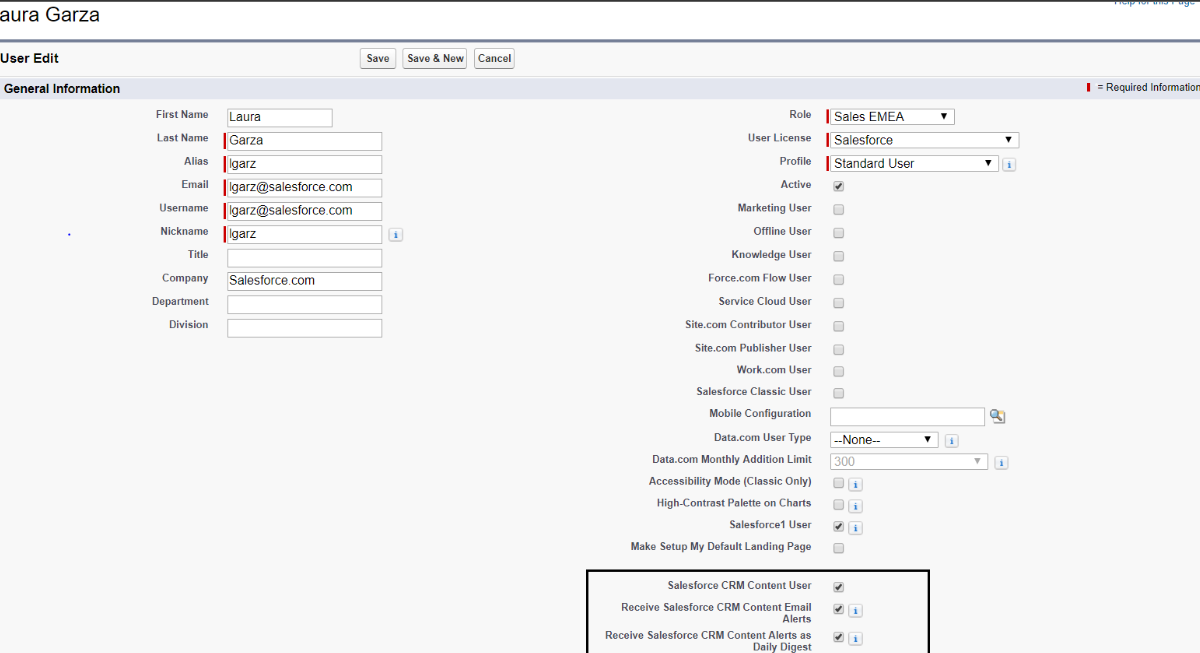
  1. From Setup, enter Users in the Quick Find box, then select Users.
  2. Click Edit next to the user’s name, and then select the Salesforce CRM Content User checkbox.
  3. Optionally, select the Receive Salesforce CRM Content Emails as Alerts checkbox or the Receive Salesforce CRM Content Alerts as Daily Digest checkbox.
  4. Verify that the Salesforce CRM Content user has the appropriate Salesforce CRM Content user permissions enabled.
  5. When you are finished editing the user record, click Save.

Enabling Multilanguage Support

To allow users to publish, edit, and search in any of the Salesforce-supported languages, from Setup, enter Salesforce CRM Content in the Quick Find box, select Salesforce CRM Content, and then click Enable multilanguage search and contribute.

Enabling Content Packs

What are content packs?
content pack is a collection of related documents or files that are stored as a group in Salesforce CRM Content. For example, you may want to create a content pack with a product list, price quote, and contract to send to a particular customer.

Enabling Content Deliveries

What is Content Delivery?
Content Delivery:

  • Converts documents  like Word and Powerpoint presentation into an online format
  • Makes viewing as easy as clicking link
  • You can send it to recipients inside or outside your org
  •  You can track how frequently content was viewed
  • Provide password protection to the content

Enabling Google Docs

If Add Google Docs to Salesforce service is enabled in your org, you can add Google documents/spreadsheets/presentations to content libraries on Library tab.

Content Permissions

To use content, you must enable Content in your org (Setup –> Customize –> Salesforce Files –> Settings –> Salesforce CRM Content):

Associating Content with Standard and Custom Objects

You can attach a content to Standard as well Custom objects by adding the Related Content related list on the page layouts.

  1. To search for content using the Related Content related list you have two options:
    1. Search All: Searches content in all the libraries accessible to the user
    2. Find Content: Searches content relevant to the record
  2. On the search results page, filter your results as needed by entering search terms or selecting filter criteria from the sidebar.
  3. Click Attach for any file that you want to attach to the record.
  4. Click the Back link to return to the detail page.

Configuring Libraries

Step 1: Create a New Library

  1. Click New in the My Libraries section of the Libraries tab home page.
  2. Enter a unique library name.
  3. If you want, add a Description.
  4. Click Save and Add Members or, if you want to add members later, click the Save and Close button.

Step 2: Add Library Members

  1. On the Libraries tab, click the library name if the library isn’t already open.
  2. In the Members section, click Add Members.
  3. If the member you want to add isn’t listed, start to enter their first name in the search box and click Find.
  4. Select members from the Available Members box. Members can include individual Salesforce CRM Content users or public groups containing Salesforce CRM Content users.

Tip: If you have many Salesforce CRM Content users, create a public group and add it to a library rather than adding users to the library individually.

  1. Click Add to add the members to the library.
  2. Click Next.

Step 3: Assigning Library Permissions to Members
Select a library permission for each user or public group and click Save.
Restricting Record Types in a Library
To restrict the record types allowed in a library:

  1. On the Libraries tab, select a library from the My Libraries area.
  2. Click Record Types.
  3. Optionally, change the default record type for the library.
  4. Select the Restrict the record types available in the library checkbox.
  5. For each record type that you want to allow in the library, move it from the Available Record Types list to the Selected Record Types list.
  6. Click Save.

Library Permissions

Each library member has specified permissions that determine what actions they can perform within the library:
You can add new permissions as well as modify the existing ones. To edit a Salesforce CRM Content library permission, from Setup, enter Content Permissions in the Quick Find box, then select Content Permissions. Then click Edit next to the appropriate permission.

Enabling Salesforce CRM Content in Portals

Salesforce CRM Content is available in the Customer Portal and partner portal. Two levels of access to Salesforce CRM Content can be granted to portal users:

  • Portal users without a Salesforce CRM Content feature license can download, rate, comment on, and subscribe to content if they have the “View Content on Portals” user permission.
  • Portal users with CRM Content feature license can :
    • Access content in libraries
    • Move and Share content among libraries
    • Delete content
    • Contribute content
    • View CRM Content reports

Note: While Portal users with Content feature license can contribute content which is creates a content and a content version, they cannot distribute it (content delivery record cannot be created). If you would like to do that, you would need a batch apex running in the background under the System Admin’s context to create the content deliveries.

Accessing Salesforce CRM Content

Licensed users can access Salesforce CRM Content by choosing Content from the Force.com Apps drop-down list.
Let’s look at the Salesforce CRM Content Application. It has three tabs:
Libraries tab
Under Libraries tab you can:

  1. Access your personal library
  2. View/edit a shared library
  3. Analyze library usage and activity
  4. Create new libraries
  5. Publish files, web links, Google docs and custom content packs

Content tab
On Content tab user can view:

  • Files, content packs, weblinks, Google docs published in Content libraries
  • If Chatter is enabled, files posted to chatter groups
  • Public Chatter files
  • 20 most recently modified items
  • Search and filter content

Subscriptions tab
On Subscriptions tab user can:

  • view and toggle on/off Content subscriptions
  • Click Content, Tags, Authors or Libraries subtabs to view subscriptions